Work in the Portal
A guide: one model, from first description to shared result. Each section is a task and ends when it is done. For what a field means, see the Workbook reference; for how the numbers are computed, the Method reference.
The Portal is where you build a model, run it and read the result cards. You need a Google account that has been let into a workspace, and a decision you are weighing: two or more things you could fund, and a budget that will not cover them all.
Create a project
A project holds one model, every version of it, its runs, and the people it is shared with.
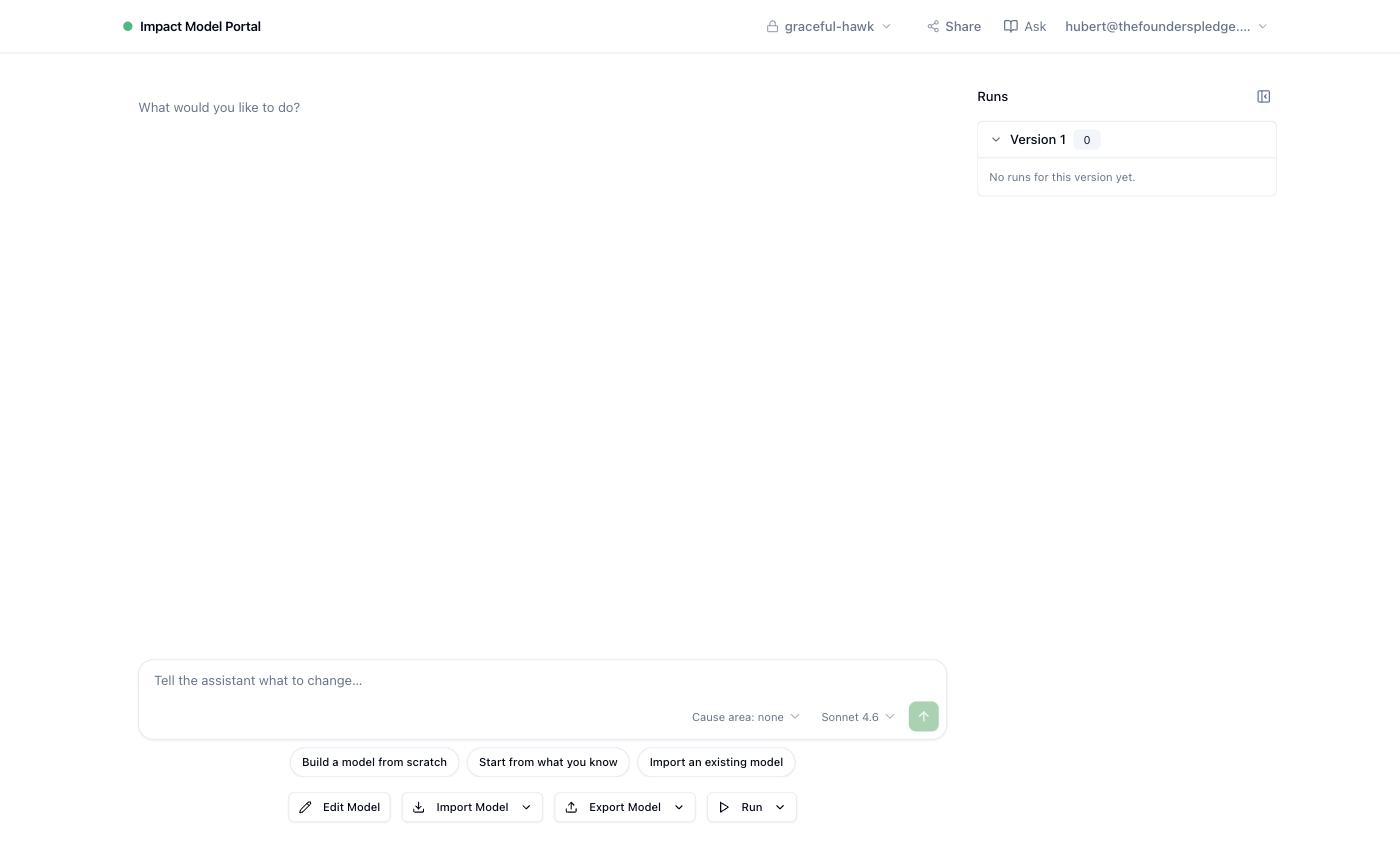
From the home page, give the project a title and, in the second field, say what decision the model is for — one sentence is enough, and it is what your colleagues will see in the list. New project opens the workspace:
- the assistant on the left, where most of the work happens;
- the Runs pane on the right, empty for now;
- a toolbar under the chat — Edit Model, Import Model, Export Model, Run;
- in the top bar, the project switcher, Share, and Ask.
Describe the model
There are three ways in, and they all edit the same model. Every change, whichever way you make it, becomes a new version, so you can always see what a run was computed from.
Tell the assistant. The three pills under the empty chat are the usual starting points: Build a model from scratch, Start from what you know, Import an existing model. After that, say what you want in plain words — "add two funding opportunities, Direct Kenya and Direct Ethiopia", "make Tractability lognormal between 0.4 and 2", "the second bracket of Direct Kenya is worth 20% less". The assistant asks when it needs a number you have not given, and tells you what it changed. The Cause area picker at the foot of the chat gives it guidance specific to a field; none is fine.
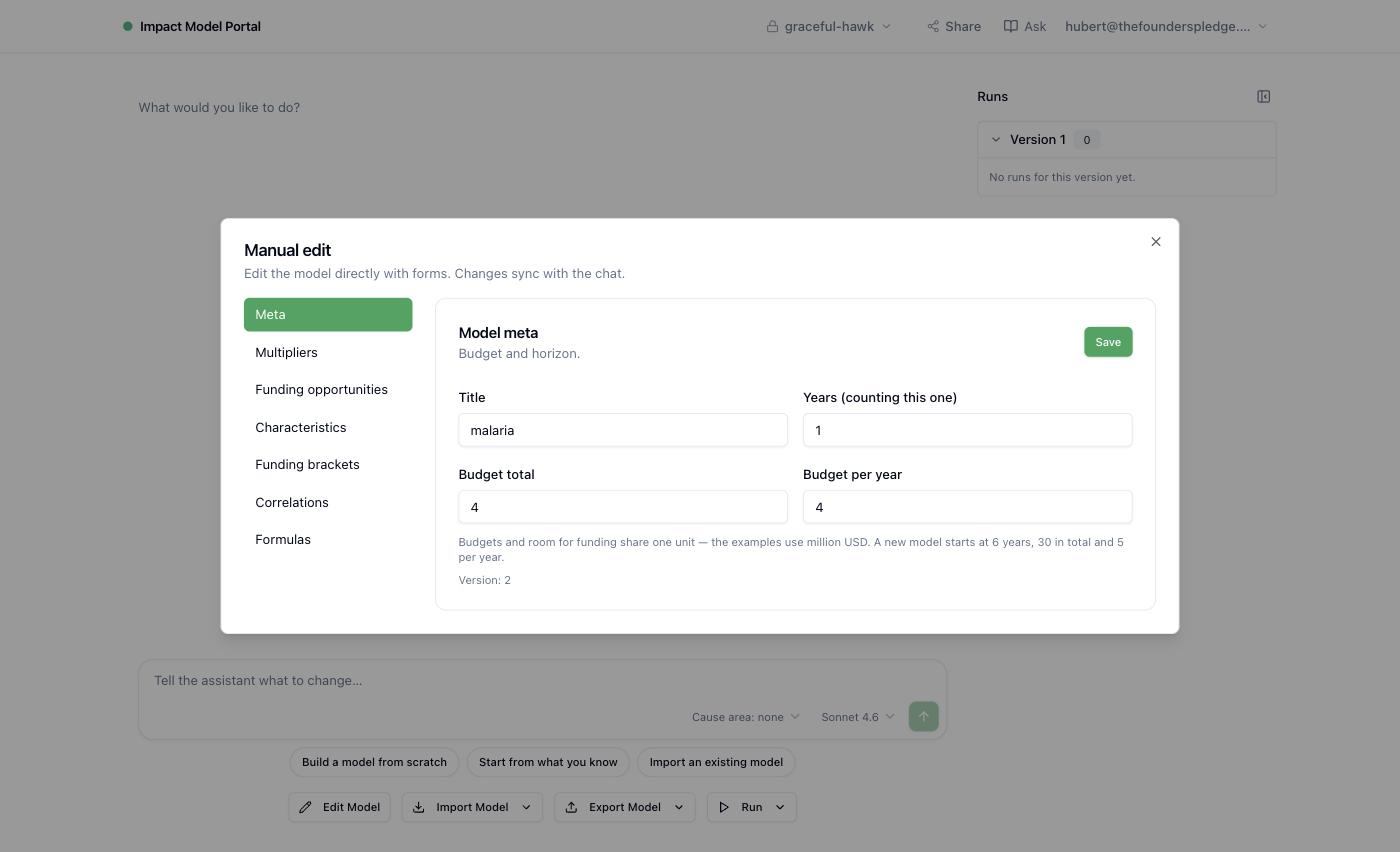
Use the forms. Edit Model opens the same model as seven tabs: Meta (title, years, budgets), Multipliers, Funding opportunities, Characteristics, Funding brackets, Correlations, Formulas. Use them when you know exactly which cell to change. Budgets and room for funding share one unit; the examples use million USD.
Import a workbook. Import Model › Google Sheets takes the URL of a spreadsheet laid out as the Workbook reference describes; Upload file takes a model the Portal exported as JSON. The assistant cannot import for you — the button is the only way in. An import replaces the current model as a new version; the old one stays in the history.
Check it
Before spending a run, ask the assistant "will this model run?" It checks every sheet and lists anything that would stop the engine — a missing standard deviation, a formula that cannot be resolved — and can usually fix it if you say so.
Run › Preview is the quicker check. It simulates the model without solving portfolios and comes back in seconds, with the cards about the inputs and the expected values: how each opportunity's characteristics line up with the multipliers, and how the opportunities compare. That is enough to see whether the model says what you meant.
Run it
Run › Full run simulates the model and solves the portfolios. The dialog offers three numbers — simulations, bootstrap samples, simulations per sample — and the defaults suit most models; more simulations means smoother results and a longer wait. A full run takes a few minutes.
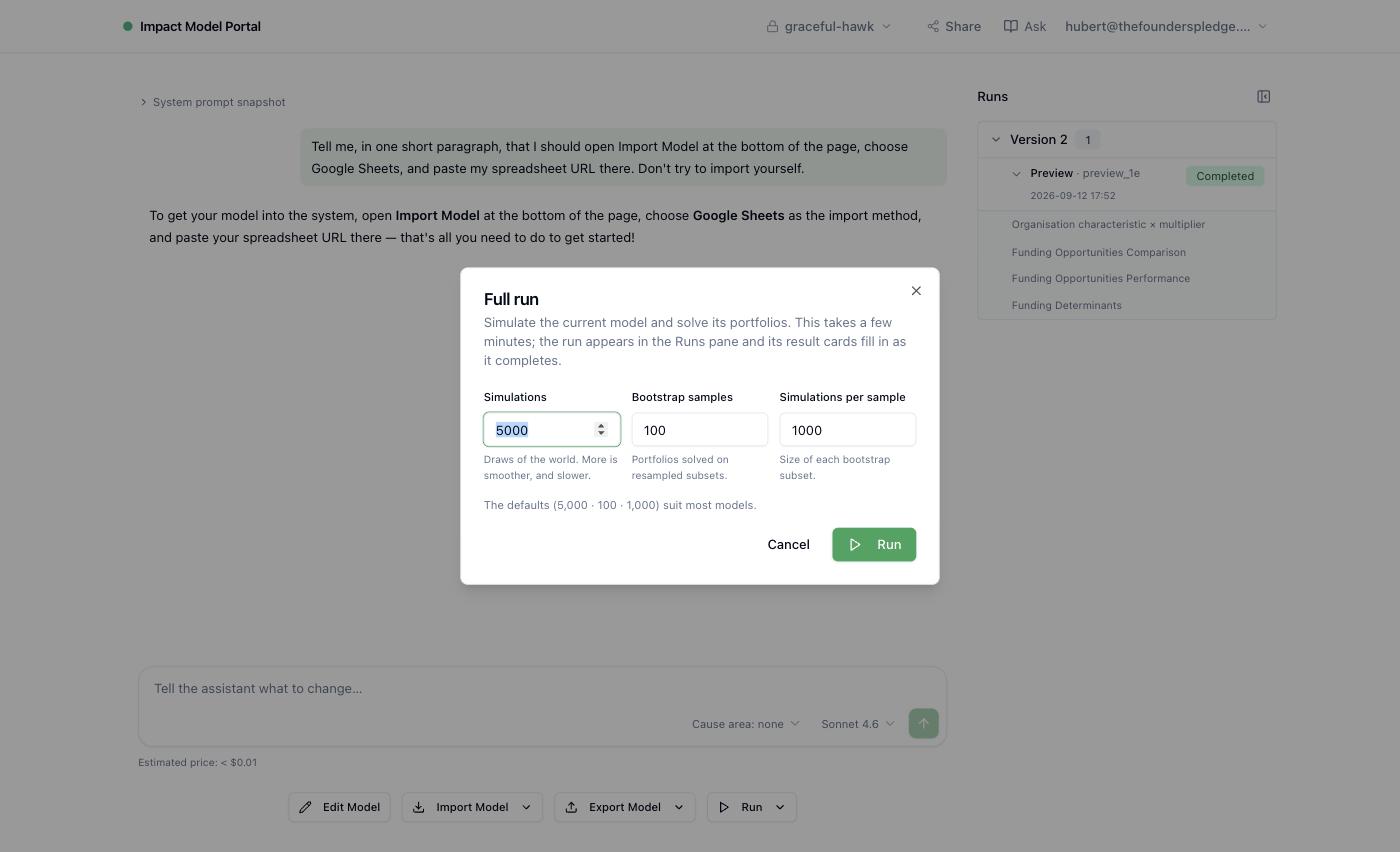
It appears in the Runs pane at once, under the version it was computed from, first as running and then as complete; the pane updates on its own, and if you asked the assistant to run it, it also tells you when it is done. You can leave the page — the run carries on, and the results are there when you come back.
Read the results
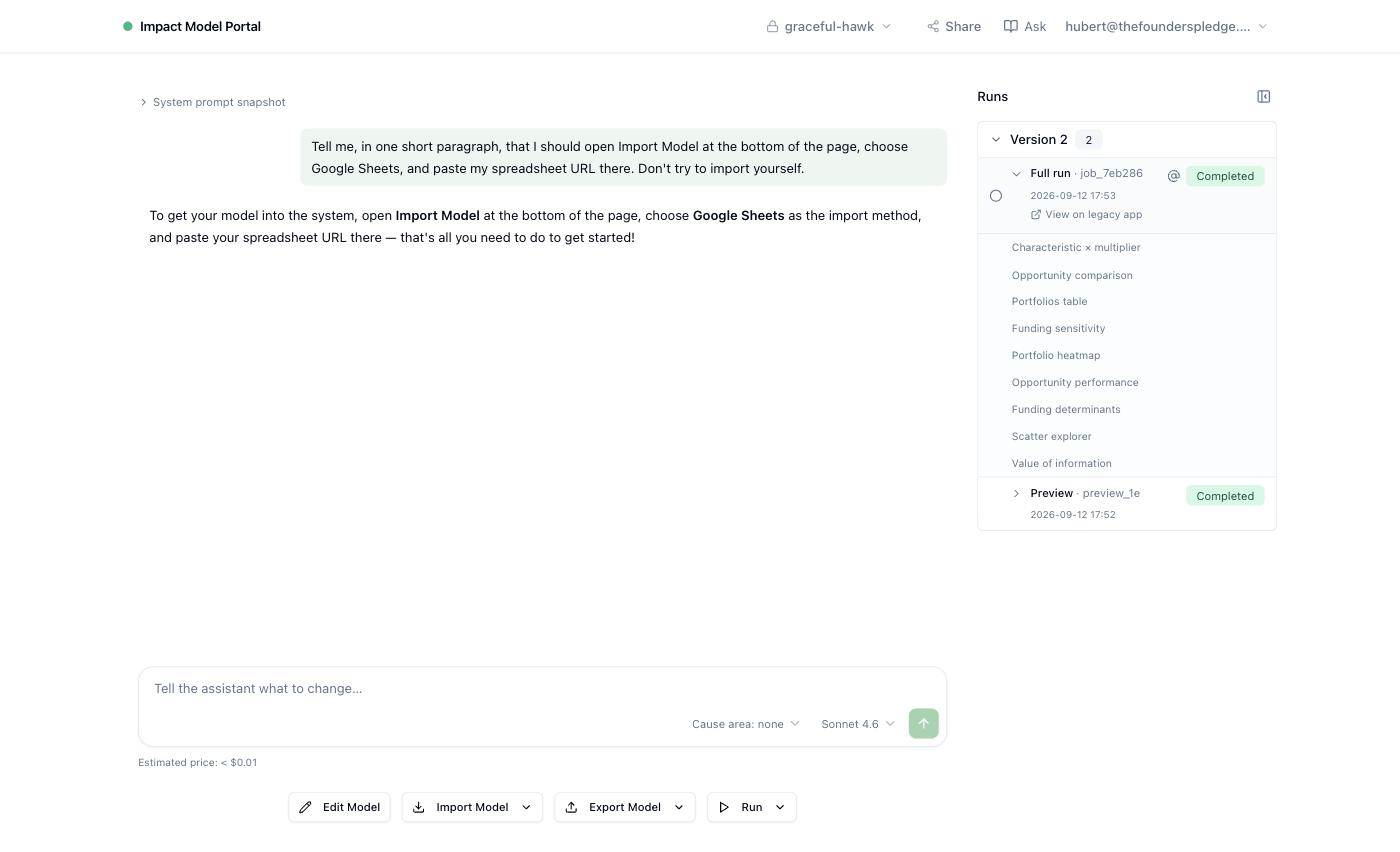
Expand a run in the Runs pane to see its result cards, and click a card's name to open it. Each is a chart or a table with its own controls: pick the opportunities, the multiplier, the method. Read them in this order.
What does each opportunity look like?
- Characteristic × multiplier — each opportunity's characteristic against the multiplier's own distribution.
- Opportunity performance — each opportunity's expected value across the simulations.
- Opportunity comparison — how often A beats B.
Where should the money go?
- Portfolios table and Portfolio heatmap — the allocations that did best, and how the funding spreads across opportunities in each.
- Funding sensitivity — how the allocation shifts as one multiplier moves across its range.
Why — and what is worth finding out?
- Funding determinants — which multipliers drive one opportunity's funding.
- Value of information — which multipliers' uncertainty would change the decision if it were resolved: the list of what to research next.
- Scatter explorer — any two multipliers against each other, one point per simulation.
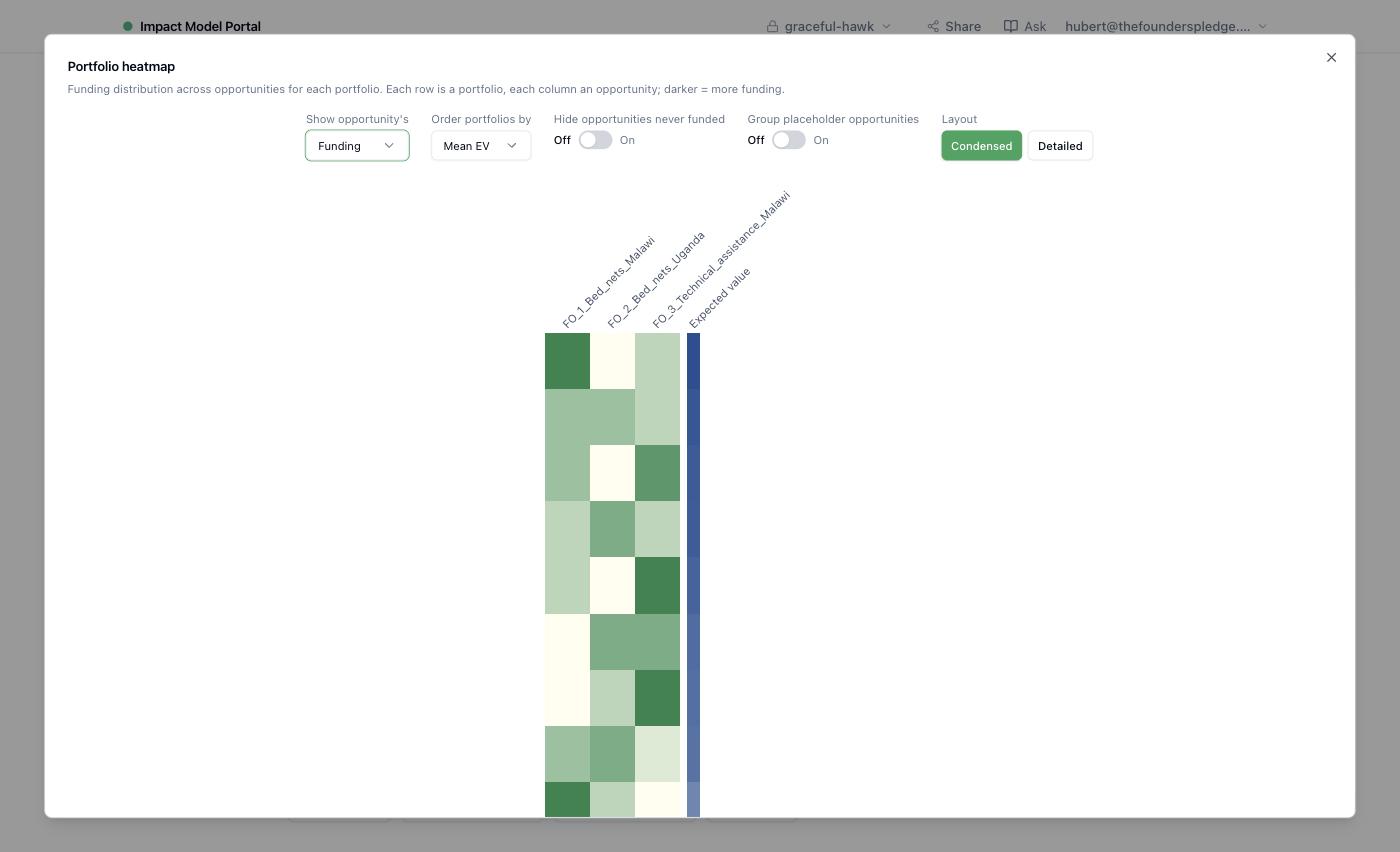
Add to chat on any card pins it into the conversation, so you can ask the assistant about what you are looking at — "why does Direct Ethiopia get nothing in most portfolios?" — and it answers from that card.
Change it and run again
Edit — by chat, by forms or by a fresh import — and run again. Runs are grouped by version, so the pane shows what each was computed from and you can compare them. Export Model › Google Sheets writes the model to a spreadsheet you can hand-edit or keep; export again and the Portal asks before overwriting the sheet it wrote last time. Download (JSON) is the copy to keep, or to upload into another project.
Share it
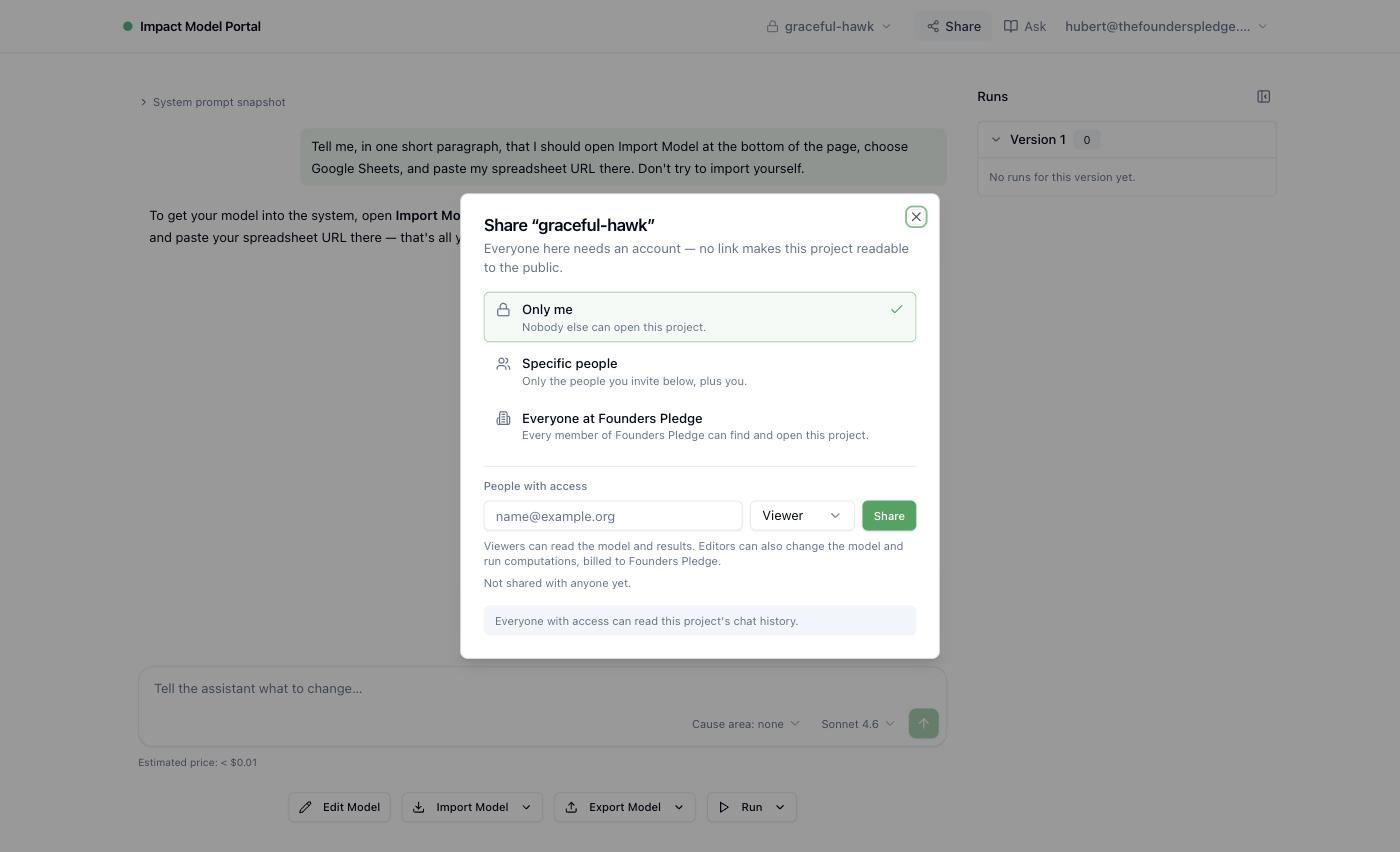
Share, beside the project title, sets who can open the project: Only me, Specific people you invite by email, or Everyone at your workspace. Everyone needs an account; there is no link that makes a project public. Viewers can read the model, every run and every card, and the project's chat history, but cannot change the model, run it or use the chat. Editors can also change the model and run it — the runs and the assistant are billed to your workspace. Only the project's creator can change who has access.
Two assistants
The assistant in the chat edits your model and runs it. Ask, in the top bar, is a different one: it answers how the Impact Model works — what a field means, how a number is computed, what the engine actually does — from this documentation and the engine's own source, and it cannot see or change any project. Ask it "what does bracket decline do?"; tell the project assistant "halve the bracket decline on Direct Kenya".
Two limits worth knowing
Each workspace has a monthly allowance for the assistants; when it is spent, the chat says so until the month turns. And a full run queues behind other runs in the engine, so a busy afternoon can add a few minutes.